Features / Apple CarPlay
Motorbook on Apple CarPlay
Find nearby fuel and EV charging from your car's dashboard, using official UK Fuel Finder prices.
Updated
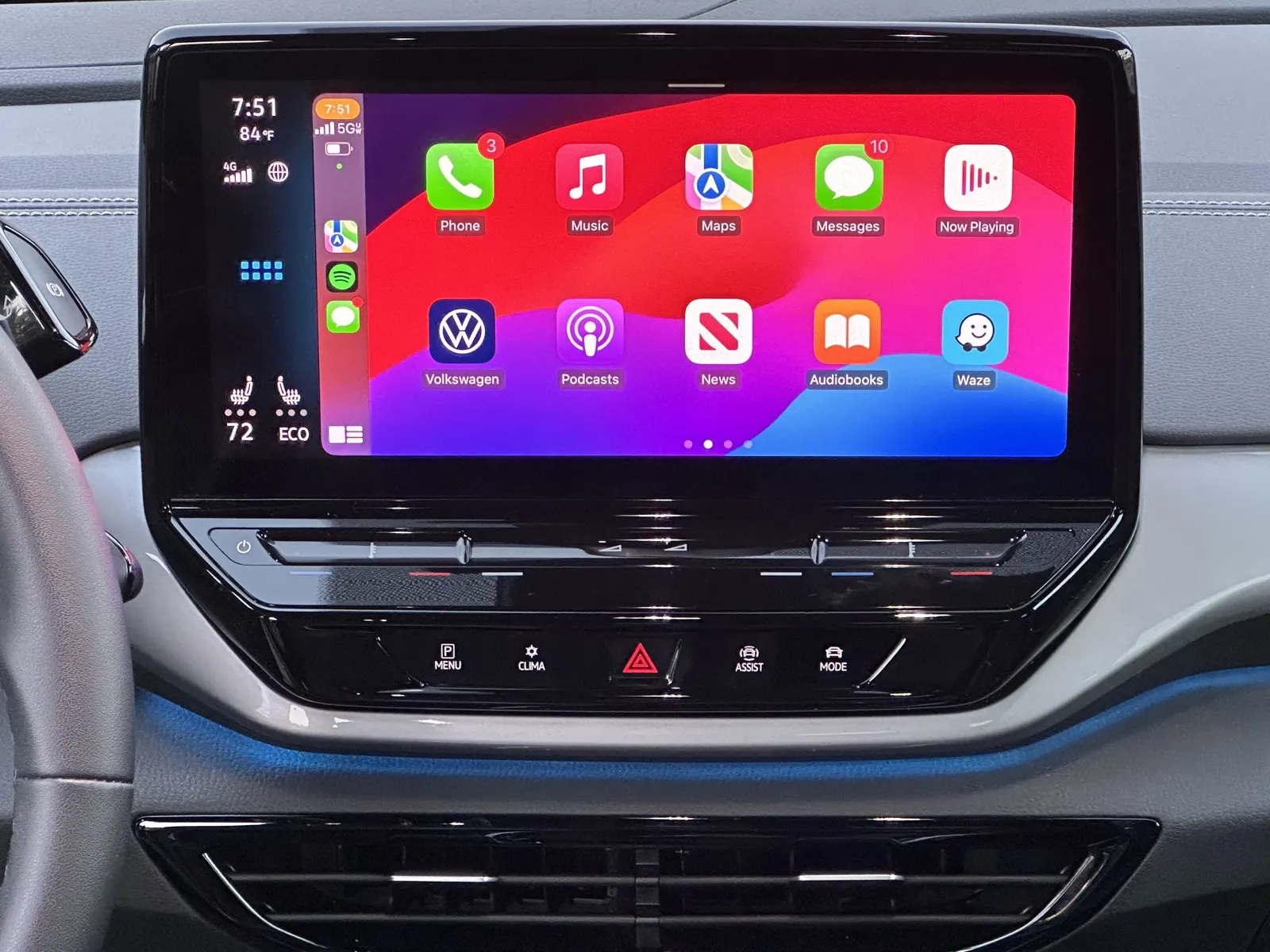

What Motorbook does on CarPlay
Once your iPhone is connected, Motorbook appears on the CarPlay home screen alongside apps such as Maps and Music. Open it there to find:
- Fuel near you. Nearby forecourts with prices from the official UK Government Fuel Finder data.
- EV charging near you. Nearby charge points, for drivers of electric and plug-in hybrid cars.
It means checking where to stop for fuel or a charge without unlocking your phone or reaching for a mount. Apple designs CarPlay apps with large, simple layouts so they can be used safely while driving, and the car's own screen, buttons or dial control them.
How to set up Motorbook on CarPlay
- Install Motorbook on your iPhone from the App Store, or update it to the latest version if you already have it.
- Open Motorbook on your iPhone once and allow location access when asked, so it can find fuel and charging near you.
- Connect your iPhone to your car. For wired CarPlay, plug it into the car's CarPlay USB port. For wireless CarPlay, press and hold the voice control button on the steering wheel, or follow your car's on-screen pairing steps, then choose your car on your iPhone under Settings, General, CarPlay.
- Open Motorbook from the CarPlay home screen. Swipe across the CarPlay screens if it is not on the first page.
- Move it to the front if you like. On your iPhone, go to Settings, General, CarPlay, choose your car, tap Customise and drag Motorbook up the list.
Your car needs to support Apple CarPlay. Check your car's handbook or Apple's list of CarPlay cars if you are not sure.
Read the launch news: Motorbook now works with Apple CarPlay, and why it beats holding your phone.
Private by design
Motorbook has no account to create and no advertising. Your vehicles, reminders and service records stay on your phone. Location is used to find nearby stations and charge points, and your location is not logged.
Official fuel price data
Fuel prices in Motorbook come from the UK Government's Fuel Finder scheme, which forecourts use to publish their prices. Motorbook reads that official data rather than relying on prices reported by other drivers. For national averages and daily movement, see UK fuel prices today.
More than a fuel finder
On your iPhone, Motorbook also keeps MOT and tax dates from official DVSA and DVLA records, with reminders before they are due, plus a service and running-cost log. See all features.
Price
Motorbook is UK only. It is free for two cars, forever. Premium is £3.99 a year or £9.99 once for lifetime access. Pricing details.
Frequently Asked Questions
Does Motorbook work with Apple CarPlay?
Yes. Motorbook works with Apple CarPlay, so you can find nearby fuel and EV charging from your car's dashboard instead of picking up your phone.
Does it work with wired and wireless CarPlay?
CarPlay apps run the same way over a cable or a wireless connection, so Motorbook appears on the CarPlay home screen whichever way your car connects to your iPhone.
Where do the fuel prices come from?
Motorbook uses official UK Government Fuel Finder data, which forecourts publish under the Fuel Finder scheme. Motorbook reads that data and shows it; it does not collect prices from drivers.
Do my MOT and tax reminders show on CarPlay?
Motorbook on CarPlay is built around finding fuel and EV charging nearby. Your MOT and tax dates, reminders and service records are managed in the Motorbook app on your iPhone.
Motorbook is not showing on my CarPlay screen. What should I check?
Update Motorbook to the latest version from the App Store, then on your iPhone open Settings, General, CarPlay, choose your car and tap Customise. Make sure Motorbook is in the list of apps shown on CarPlay.
Do I need an account or pay to use Motorbook?
There is no account to create and no advertising. Motorbook is free for two cars, with Premium at £3.99 a year or £9.99 once.
Fuel and charging, on your dashboard.
Download Motorbook, connect your iPhone and open it from the CarPlay home screen. Two cars free, forever.